

Activity & Reporting Guide
Record Your Activities and Prepare Your Reports
Follow these guides to document your allocation of effort, record community engagement, and generate NMSU annual performance reports in the New Faculty Experience.
Select a guide below to expand its instructions. You can keep multiple guides open while you work.
Log In to Faculty SuccessNot sure where an activity belongs? Review the Data Entry Guidance. For assistance, contact your college liaison.
Record Your Allocation of Effort
Use the Workload Information screen to record your allocation of effort for the reporting year.
Before you begin: Have the reporting year and effort percentages you need to enter available. These instructions describe adding a new record. To change an existing record, open that entry from My Profile.
-
Open Add Activity.
From Home or My Profile, select Add Activity, then select Single Activity.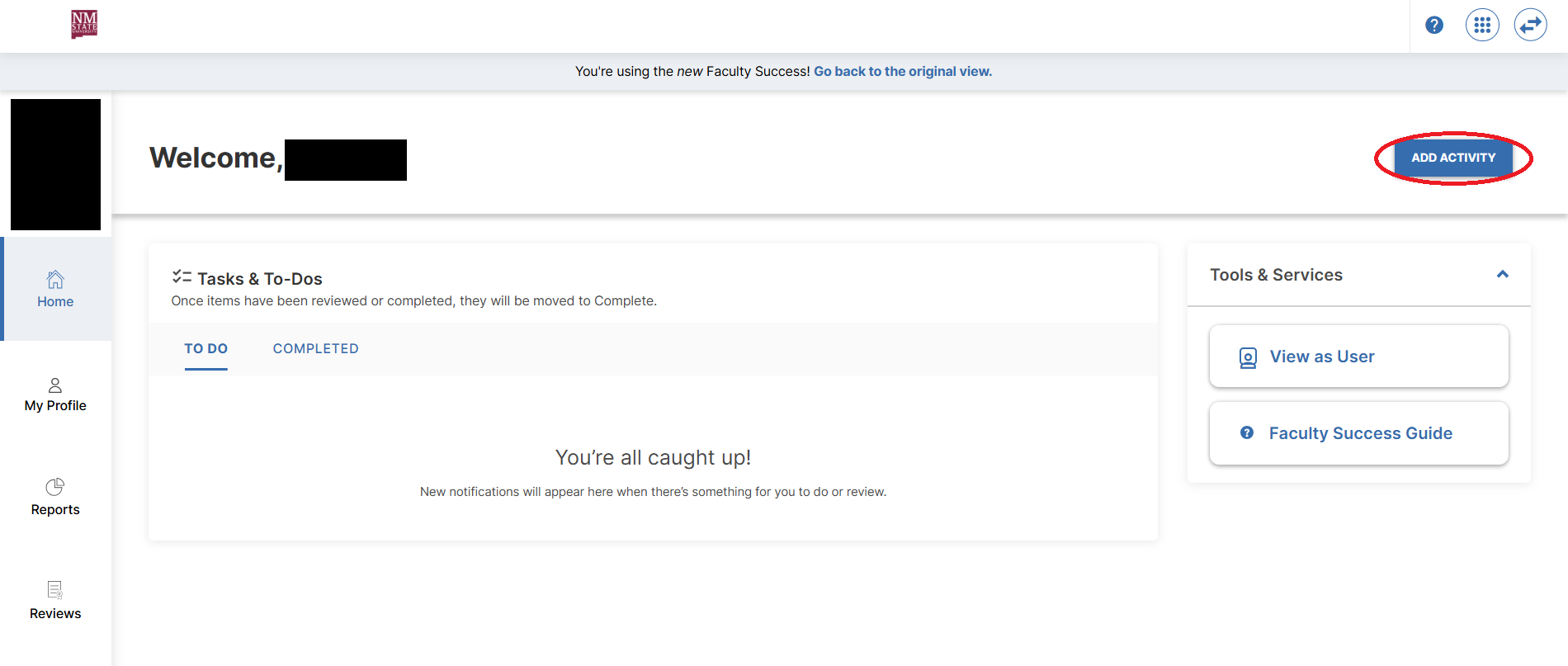
-
Find Workload Information.
Use Search Activities to find Workload Information (i.e., Allocation of Effort). Select the activity type to open its entry form.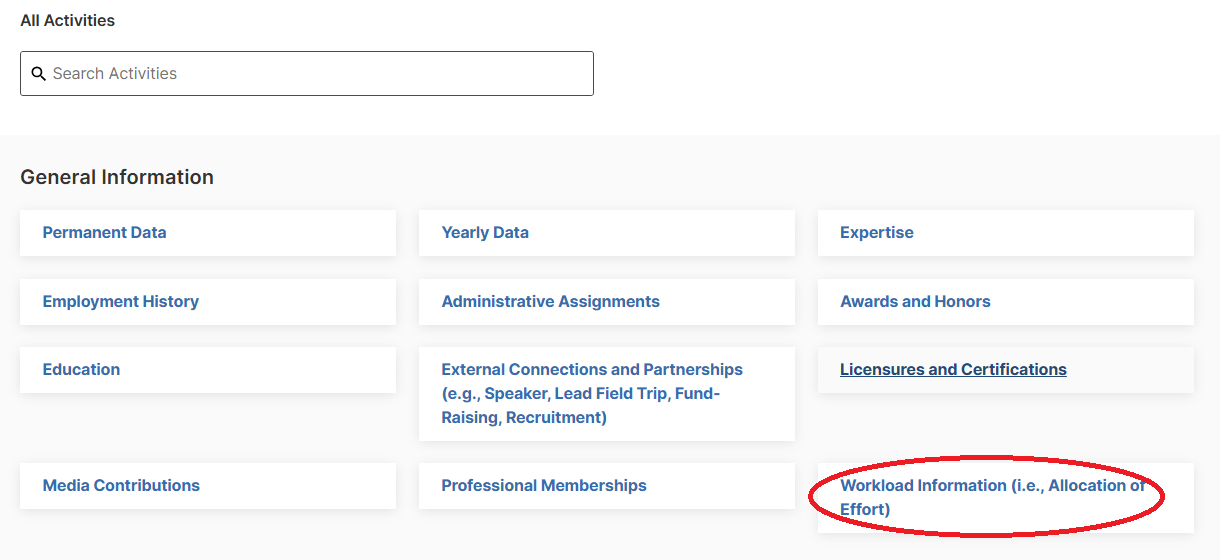
-
Enter the reporting year.
In the Calendar Year field, enter the year associated with the effort you are recording. -
Complete your allocation of effort.
Enter the applicable effort percentages and complete any other required fields shown on the form. Review the information for accuracy.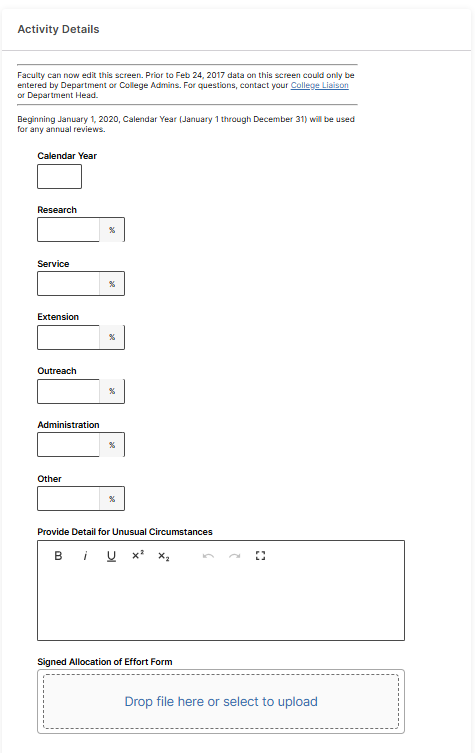
-
Save your record.
Select Save. If the system identifies missing or invalid information, correct the highlighted fields and select Save again.
You’re finished when: Your record saves successfully. The saved activity is available through My Profile.
Related guidance: Watermark’s guide to entering new activities.
For questions about your allocation of effort or reporting requirements, contact your college liaison.
Document Community Engagement
Use the Outreach, Extension and Volunteerism screen to document your community engagement activities, their audiences, and their impacts.
Before you begin: Gather the activity details, relevant outcomes or metrics, collaborator information, and any supporting documents. These instructions describe adding a new record. To update an existing activity, open that entry from My Profile.
-
Open Add Activity.
From Home or My Profile, select Add Activity, then select Single Activity. -
Find Outreach, Extension and Volunteerism.
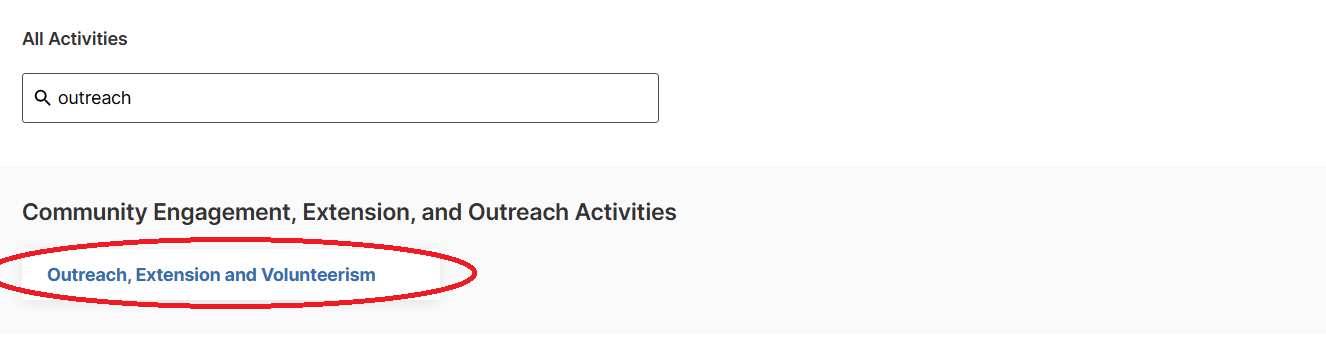
Use Search Activities to find Outreach, Extension and Volunteerism. Select the activity type to open its entry form. -
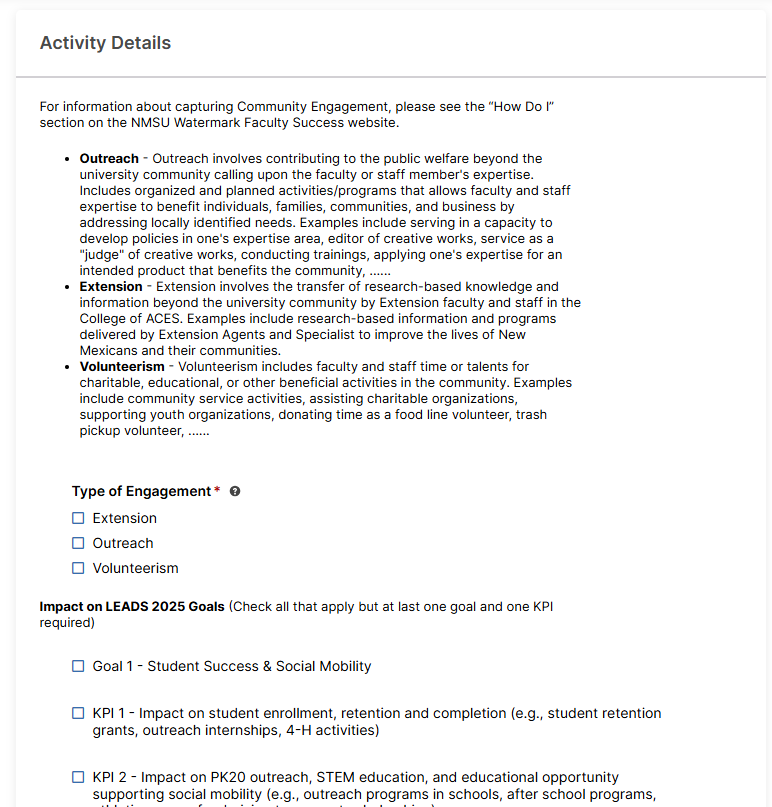
 Describe the activity and its impact.
Complete the required fields and any additional fields relevant to your activity. Depending on the activity, include:- The type of engagement and program information.
- Program impacts and accomplishments.
- Audience information and location.
- Relevant areas of expertise and specialties.
- Available metrics and funding information.
- Applicable institutional categories shown on the form.
-
Add collaborators and supporting documents.
When applicable, list the individuals involved and upload supporting files using the attachment fields provided.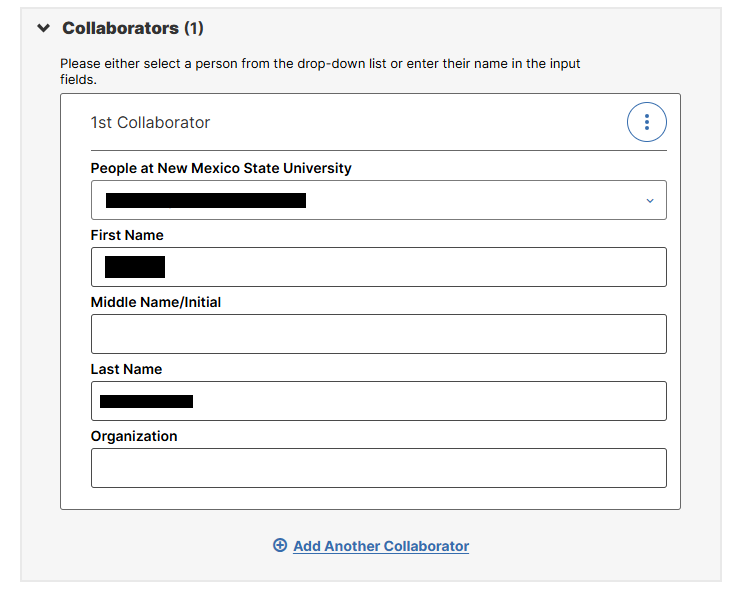
-
Review and save your record.
Check your information, then select Save. Correct any highlighted errors and select Save again.
You’re finished when: Your activity saves successfully and is available through My Profile.
Related guidance: Watermark’s guide to entering new activities.
For questions about classifying or documenting an activity, contact your college liaison.
Generate Your Annual Performance Report
Generate an NMSU annual performance report using the activities recorded in Faculty Success.
Before you begin: Update your activity records and confirm the report name, reporting period, and file format required by your college or unit.
-
Open Reports.
Select Reports from the navigation menu. -
Choose your NMSU report.
Select the annual performance report required by your college or unit. Available reports depend on your account permissions.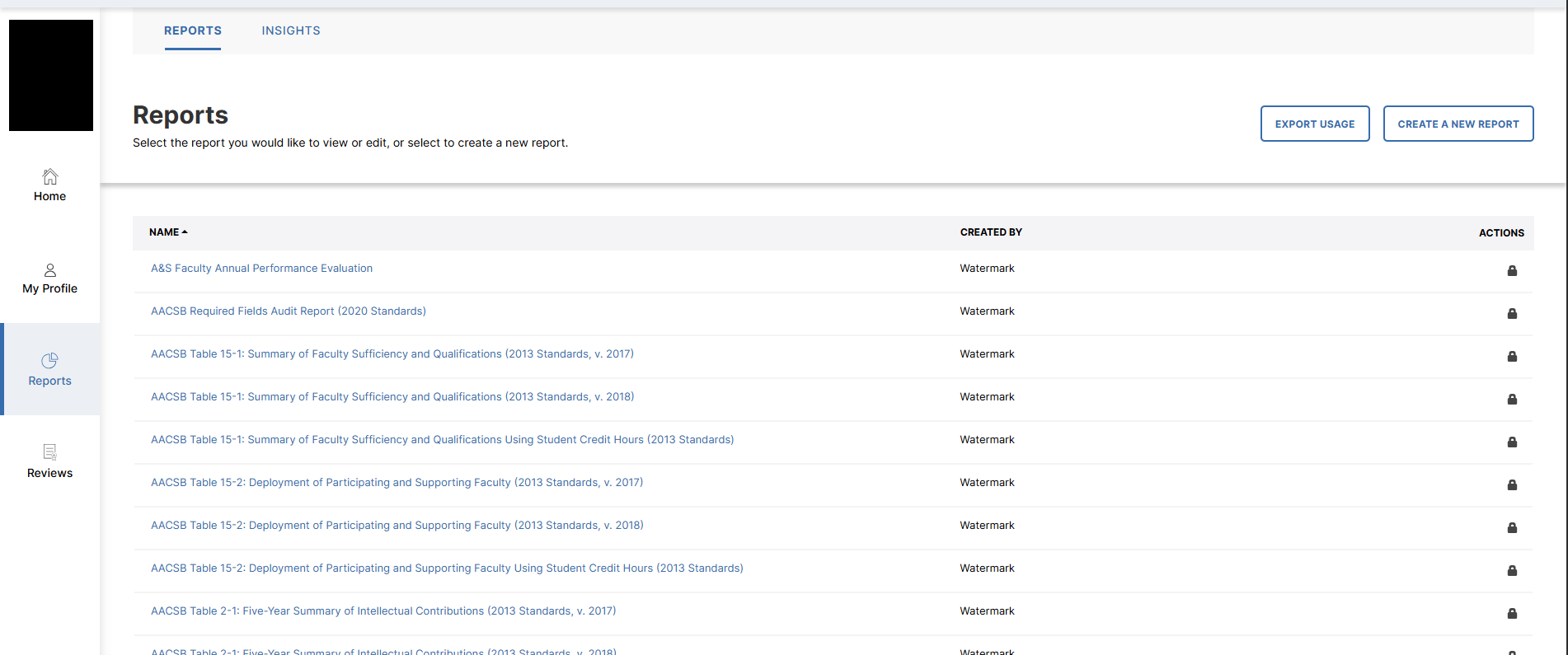
-
Set the reporting period.
Enter the required Start Date and End Date. -
Review the remaining settings.
Choose the required file format. If a user-selection option appears, confirm that you are generating the report for yourself.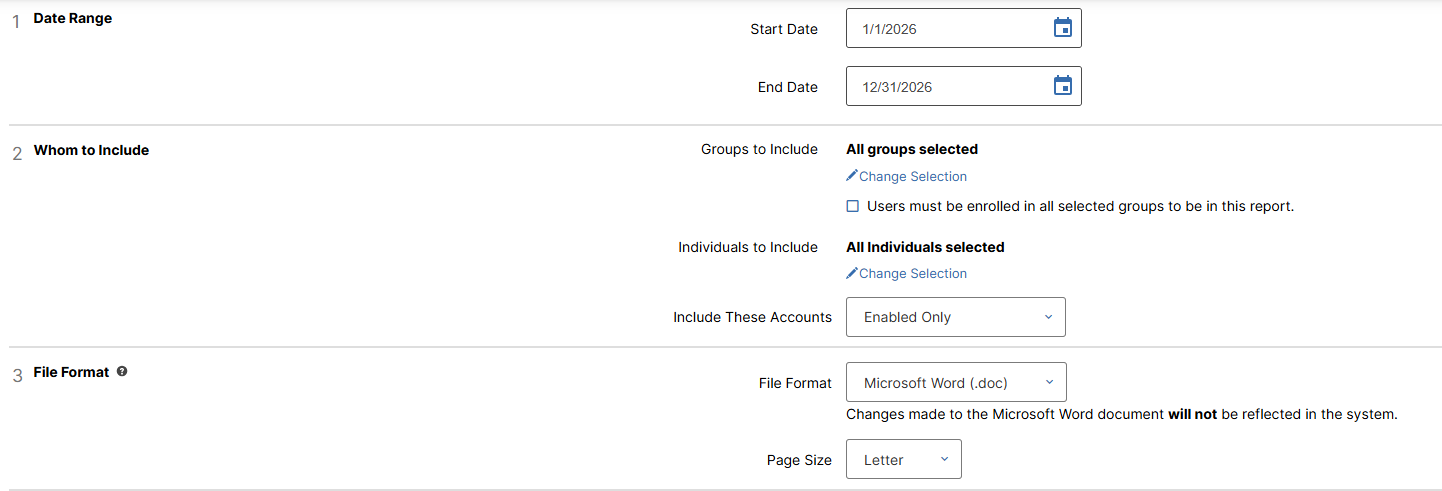 *Your report of choice may differ from this screenshot.
-
Generate the report.
Select Run Report and wait for the download.
-
Review the downloaded report.
Open the file and check the results. If expected activities are missing or incorrect, review the report dates and your activity records, make corrections, and run the report again.
You’re finished when: You have downloaded and reviewed your report. Follow your college or unit’s instructions for submitting it.
Related guidance: Watermark’s guide to running institutional reports.
If the required report is unavailable or you need help with reporting requirements, contact your college liaison.